Santa on your Ring camera: turn a camera screenshot into a Santa video
How to make Santa show up on Ring, Nest or Blink camera footage: which camera view works, how to save a still from the app, and what to expect from a doorbell view compared with an indoor camera.
5 min read · Updated
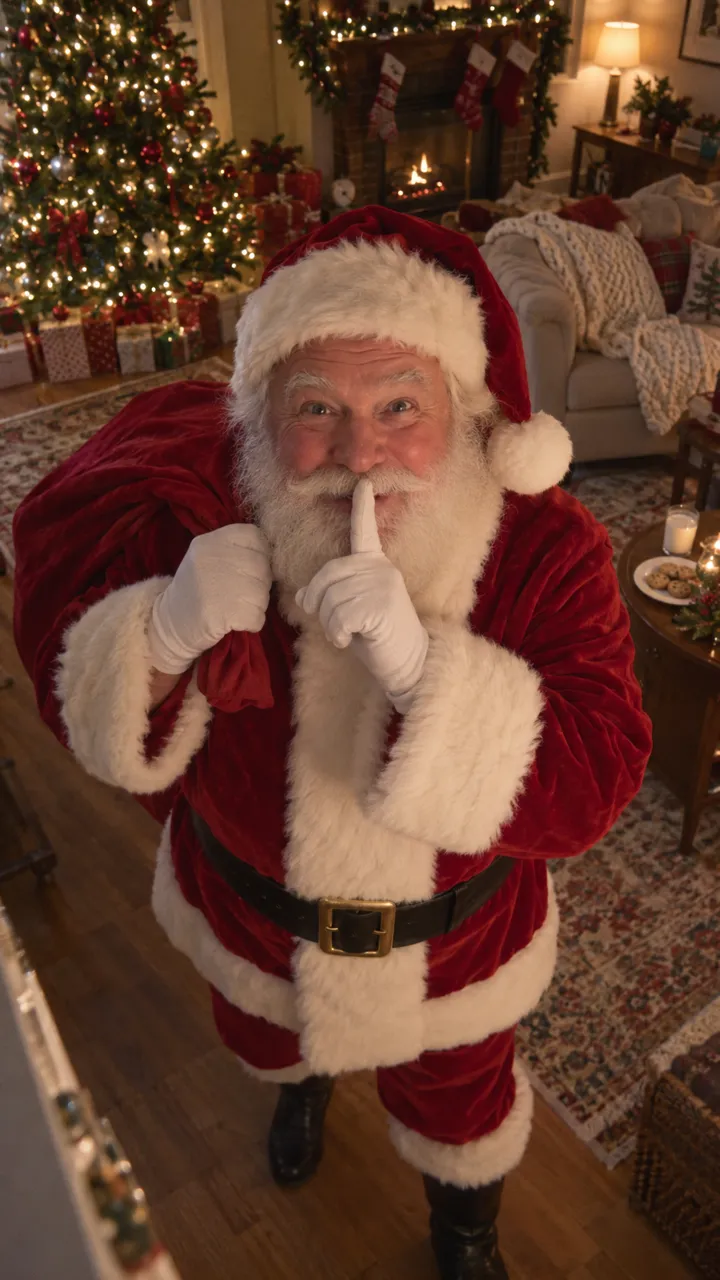
Star in Santa Caught on Camera with one photo
Make yoursHow the camera look works
There’s no way to make a real camera record Santa. What you can do is start from what your camera sees: a still of its view becomes the first frame of an AI video, the frame never moves, and Santa walks into it. Because the opening frame is genuinely your camera’s picture, the angle, the fisheye bend and the grain all match.
Pick the view
| Camera | How it works for Santa |
|---|---|
| Indoor camera in the living room | Best. The tree, the floor and the cookies are in view, and Santa has room to walk in close. |
| Doorbell or porch camera | Works, but it’s a tight view with no tree. Santa walks in near the lens; the present and cookie make less sense on a doormat. |
| No camera | Take a phone photo from a high corner instead. It plays as a home camera too. How to take it |
Save a clean still from the camera app
- In the evening, switch on the tree and a lamp in the room the camera watches, and make sure nobody is in view.
- Open the camera’s live view in its app and turn the phone sideways so the picture fills the screen.
- Take a phone screenshot, then crop away the app’s buttons, the logo and, if you like, the timestamp.
- Check it’s sharp. A blurry or very dark still gives a blurry, dark video.
A sideways screenshot gives a wide 16:9 video, the shape doorbell and camera apps use; an upright one gives an upright video. Nothing gets cropped to fit.
Turn it into the Santa video
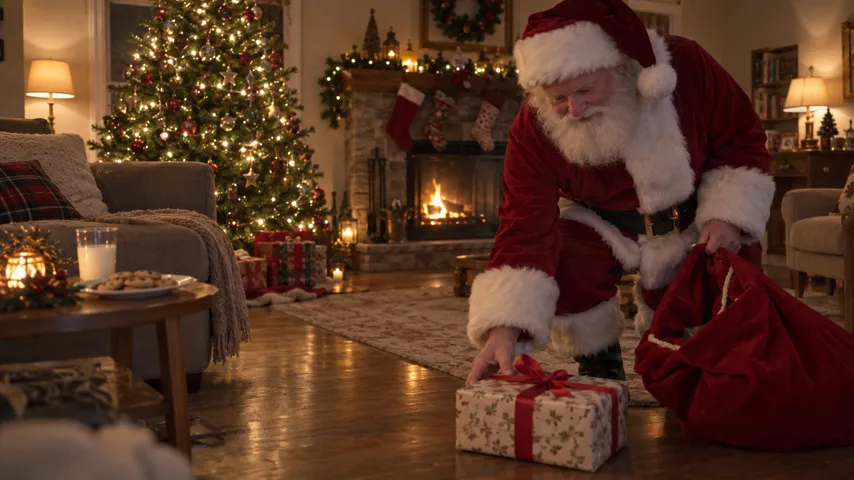
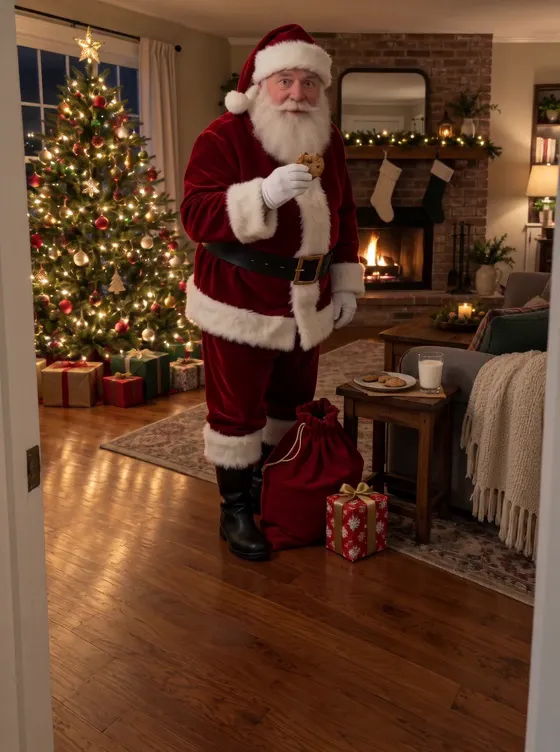
Add the still on the Santa Caught on Camera page exactly like a room photo. A few minutes later you get a 10-second video: the empty view for a second, then Santa tiptoes in from the right, close to the lens, sets down a present, takes a cookie and shushes at the camera.
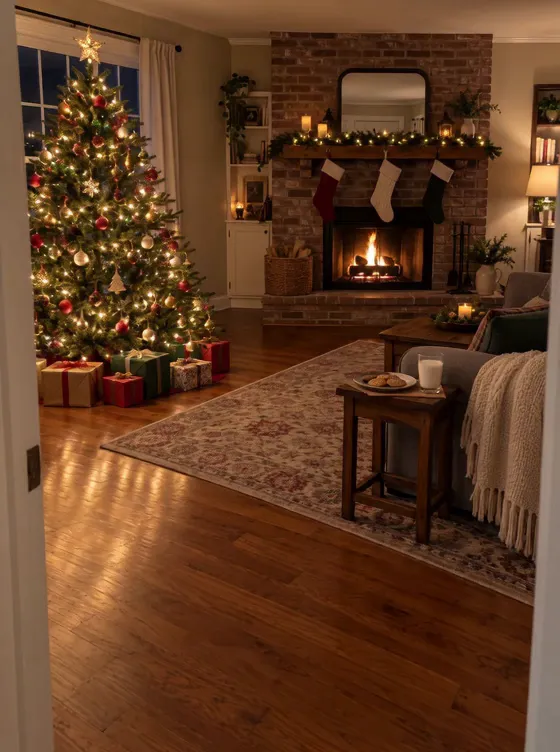
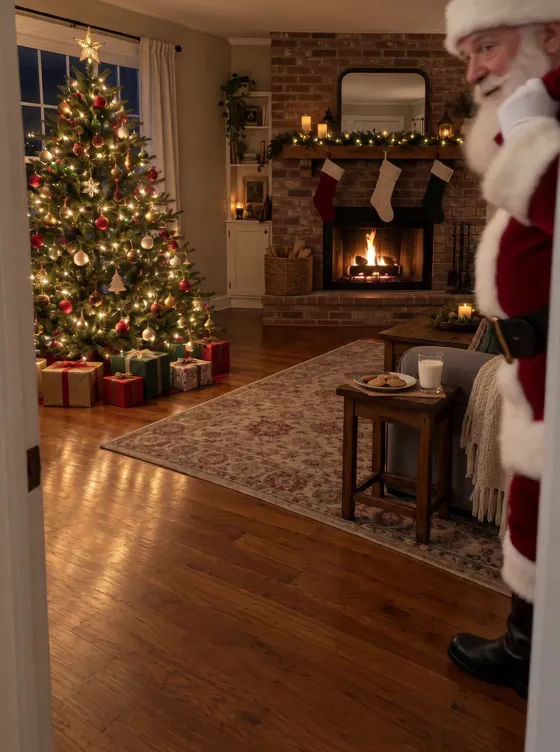
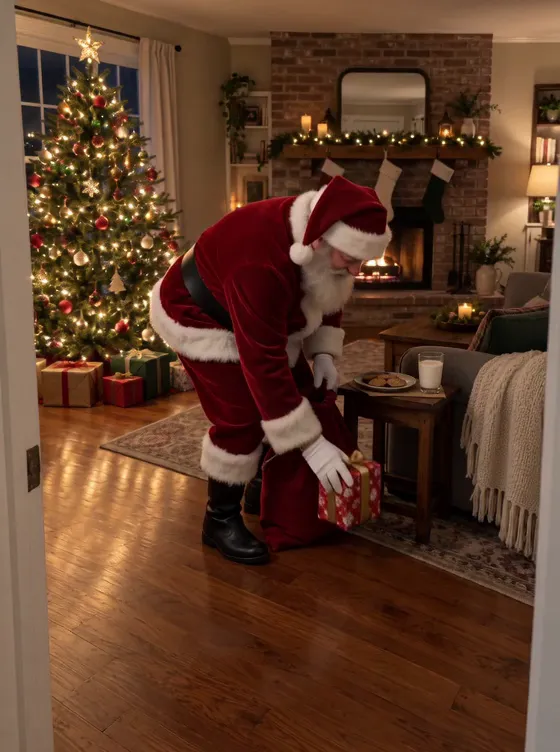
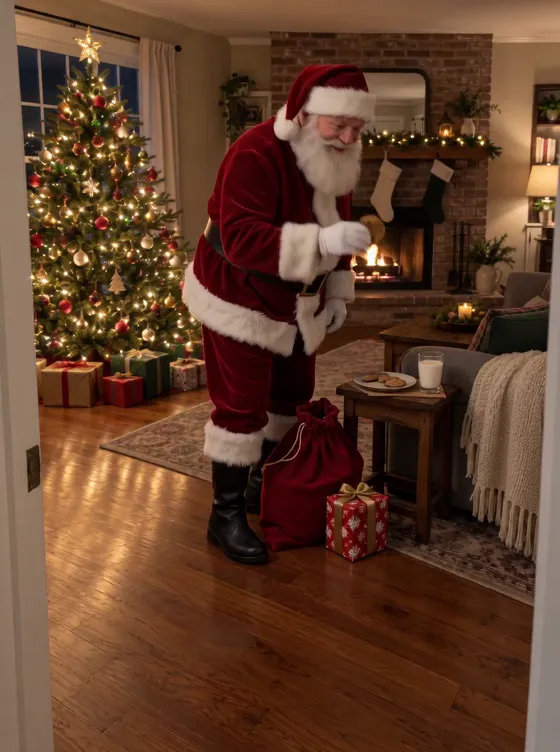
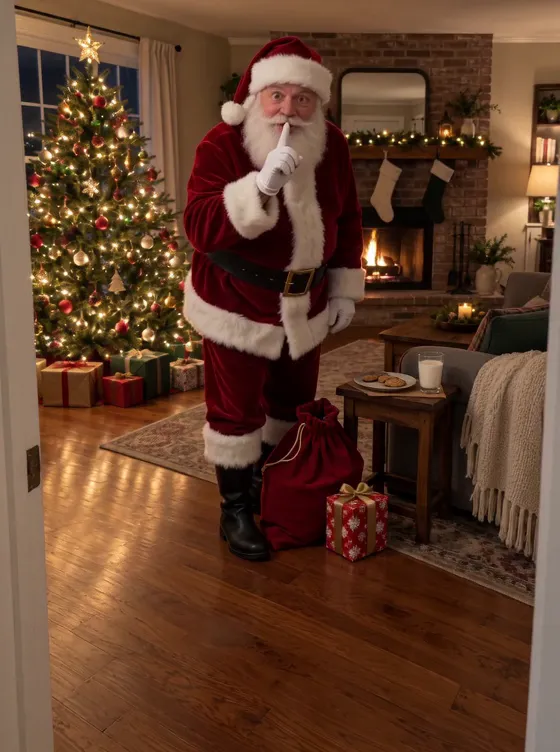
The frames above come from a phone photo of a living room. Your screenshot sets the look of yours: its colours, its angle and its grain.
One Standard video uses 45 credits. The smallest pack that makes one is $9.90 for 90 credits (2 videos), a one-time buy whose credits never expire, and plans start at $19.90 a month for 270 credits. If a video fails, its credits come back.
NowStarring is an independent video tool, not linked to Ring, Google Nest, Blink or any doorbell or camera maker, to the makers of any Santa app, or to any Santa Claus organisation.
Questions
How do I add Santa to my Ring camera footage?
Save a still of the camera’s view from the app, with nobody in it, and turn that still into a video where Santa walks in. The video opens on your screenshot and the view never moves, so it reads as your camera’s footage.
Does an indoor camera or the doorbell work better?
The indoor camera. Santa is made to walk into a room, leave a present and take a cookie, and a living-room view with the tree in it fits that. A porch view works less well: there’s little room in front of the lens and no tree.
Will it look like night vision?
It keeps the look of your still. A black-and-white night-vision screenshot gives a grey night-vision video; a colour view with the lights on gives colour.
Will the timestamp in my screenshot stay?
Whatever is in the still is in the first frame. AI models often blur or scramble small text as the video goes on, so crop the timestamp and logo out first if you don’t want a garbled one.
Can I put it back into the Ring app?
No. Camera apps only keep what the camera recorded. You download the video and play or share it like any other clip.