How to add the Ozil Goal sound on TikTok, Reels and Shorts
The Ozil Goal AI video has crowd and net sound, no music. How to add the trend’s sound or your own commentary on TikTok, Reels and Shorts, and set the volume.
6 min read · Updated

The Ozil Goal sound
The Ozil Goal trend doesn’t run on one fixed song: posts use different sounds, and many keep the stadium noise. The easiest way to join is to open an Ozil Goal video you liked, tap its sound and use it for yours. Your video from our site already carries crowd and net sound, so you can also post it as it is or add your own commentary.
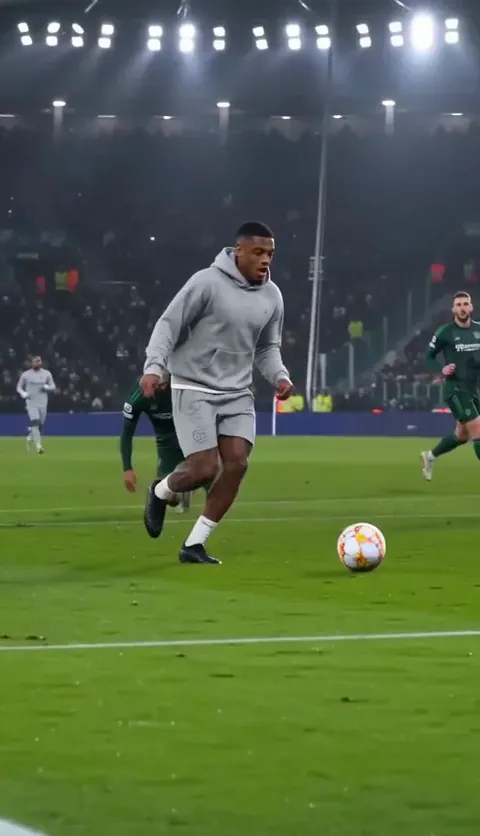
If you made yours on the Ozil Goal page, here’s what’s in the file: the crowd, studs on grass, the thud of the ball and the net at the finish. No commentary and no music. That leaves you three good choices.
Three ways to sound it
| Choice | How | Best for |
|---|---|---|
| Keep the stadium | Post with the original sound | Making it look like real TV |
| Use the trend’s sound | Tap a sound you liked, use it | Showing up with the trend |
| Add commentary | Record a voiceover | The funniest version |
Using a sound from another post puts your video on that sound’s page, next to the other videos that used it, where people go looking for more. Keeping the original sound means your clip starts its own sound page instead.
There’s no wrong choice. The stadium sound makes it feel like a broadcast, a trend sound puts it in front of people already watching the trend, and commentary makes it yours.
On TikTok
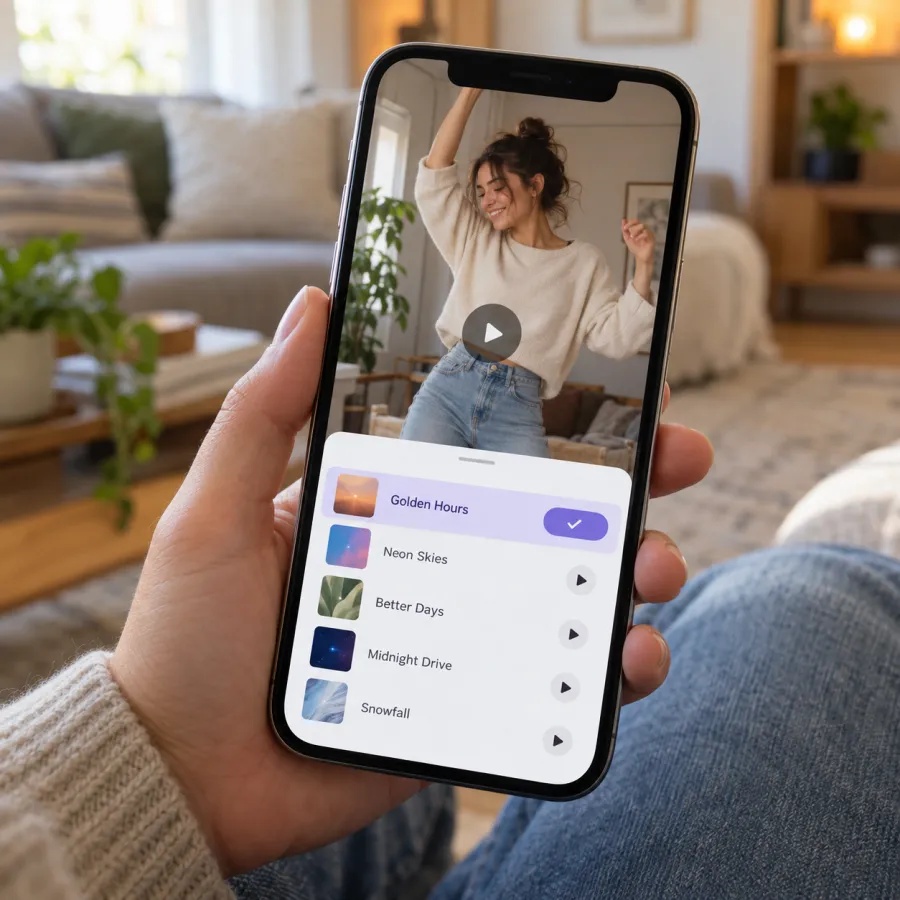
- Find an Ozil Goal video whose sound you like and tap the sound name at the bottom.
- Tap “Use this sound,” then upload your Ozil Goal video from your gallery.
- Or upload your video first and tap “Add sound” at the top of the editor to pick from the library.
- Open Volume and set the mix (see below).
On Instagram Reels
- From an Ozil Goal Reel you liked, tap the audio name, then “Use audio,” and add your video from the gallery.
- Or start a new Reel, add your video and tap “Add audio” to search the library.
- Line up the sound with your clip and set the volume.
On YouTube Shorts
- From an Ozil Goal Short, tap the sound name, then “Use this sound.”
- Or create a Short, add your video and tap “Sound” to pick one.
- Set the volume so the crowd doesn’t bury the added sound.
Adding your own commentary
Commentary suits this trend more than most, because the joke is the wait. TikTok, Reels and Shorts each have a voiceover option in their editing tools; look for “Voiceover” and record over the clip as it plays.
- Stay quiet on the chip, then get louder as the first defender slides.
- Go flat and slow on the wait: “He’s… waiting. He’s still waiting.”
- Say almost nothing on the finish. Let the net do it.
- Record somewhere quiet with the phone close, and do two or three takes. The calmest one is usually the funniest.
- Write your own lines. Never copy a real broadcaster’s words or voice.
Mixing the volume
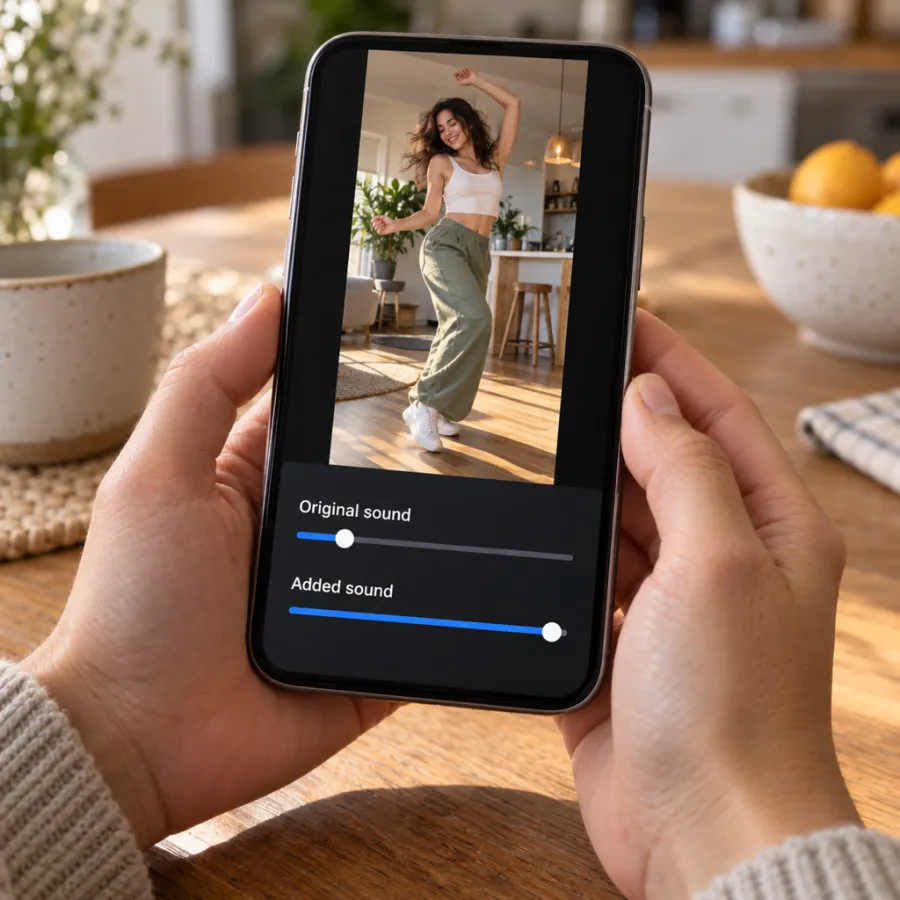
Because our file has no music, there’s nothing to clash with. With an added sound, set the original low rather than off, so the crowd and the thud of the net still come through at the finish. With commentary, keep the original at a middle level so it sounds like a real broadcast, with your voice on top.
Line it up, then post
When you add a sound, the app often starts it at its catchiest part. Pick the part that suits the clip instead: the build should run under the chip and the wait, and the big moment should land on the finish.
- After picking the sound, tap its name or the scissors or trim icon in the editor to choose which part plays.
- Drag until a strong beat or drop lands on the last second, when the ball rolls into the net.
- Play it through with the crowd low underneath and check the net still comes through.
- Set the volume, then go to the post screen.
On the post screen
- Write a caption in your own words that sets up the wait, the way a friend tells a story about a goal. Don’t claim it’s real match footage.
- Add a few plain hashtags people search, such as #ozilgoal and #football, plus #aivideo for an AI version.
- Tag your friends if they’re in it, with their okay.
- Save a copy first, so you can repost with a different sound if one gets muted.
If a sound is muted or missing
- Business and brand accounts often get a smaller sound library. If the sound you want isn’t there, post with the stadium sound or your commentary.
- Some sounds aren’t available in every country. Try “Use this sound” from a post that plays for you.
- If a post gets muted after upload, repost it with a sound picked from the app’s library.
On TikTok, turn on the “AI-generated content” label in the post settings for any AI-made Ozil Goal video, and post it as a fan video, never a real match goal.
Haven’t made it yet? How to do the Ozil Goal AI trend covers every route. NowStarring is an independent fan tool, not linked to the player, his clubs, any league or broadcaster, or CapCut.
Questions
What is the Ozil Goal sound on TikTok?
There isn’t one fixed song. Open an Ozil Goal video whose sound you like, tap the sound name and choose “Use this sound.”
Does the Ozil Goal AI video have music?
Not ours. It has the crowd, studs, ball and net, with no commentary and no music, so you can add any sound on top.
How do I add commentary to my Ozil Goal video?
Use the Voiceover option in the TikTok, Reels or Shorts editor and record over the clip. Keep the stadium sound at a middle level underneath.
Can I use a real commentator’s voice on my Ozil Goal video?
No. Record your own commentary in your own words. A broadcaster’s audio isn’t yours to reuse, and it can get the post muted or removed.
Should I turn the original sound off?
Turn it low, not off. The net at the finish is part of the payoff.
Where should the sound’s drop land in the Ozil Goal video?
On the finish. Trim the sound so its big moment hits the last second, when the ball rolls into the empty net.
Why can’t I find a sound for my Ozil Goal video?
Business accounts and some countries get a smaller library. Post with the stadium sound or add your own commentary instead.