Add the Original Sound to an AI Video on TikTok and Reels
How to add a trend’s original sound to an AI video on TikTok, Reels and YouTube Shorts, mix the volume without an echo, fix a muted sound and add the AI label.
7 min read · Updated
Why you add the sound when you post
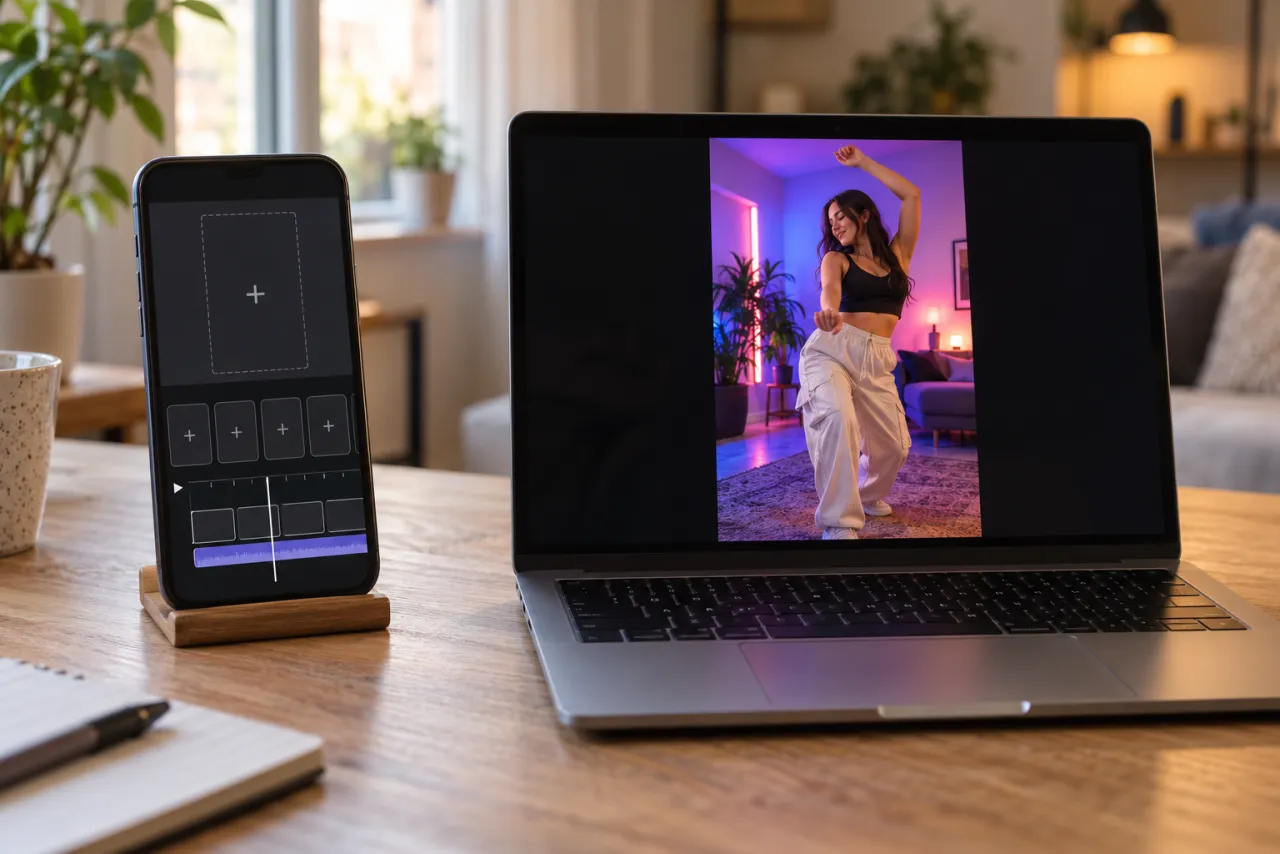
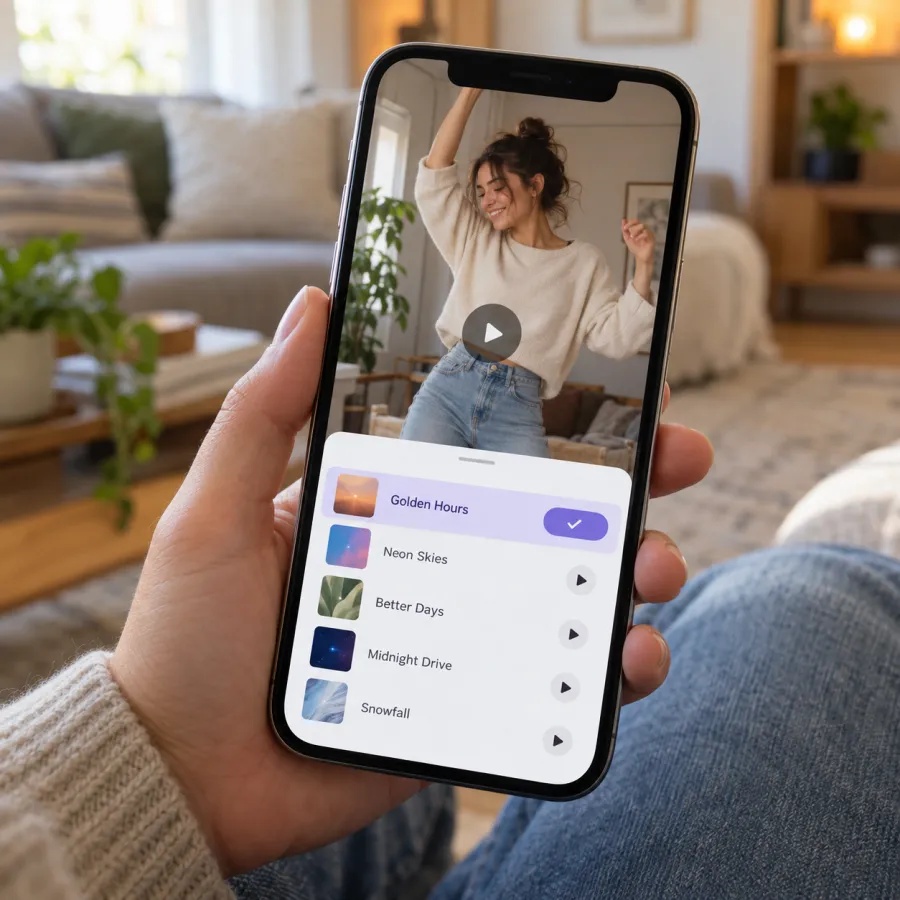
To add a trend’s original sound to an AI video on TikTok, open a video that uses the sound, tap the sound name at the bottom, tap Use this sound and upload your clip; or add it from the sound library while editing. Then turn your clip’s original sound down so the two don’t play at once.
Picking the trend’s sound in the app is what puts your video on that sound’s page, next to everyone else’s version. A song that’s only baked into your file plays fine, but the app treats it as your own original audio and doesn’t link it to the trend.
What sound is already in your video
Every NowStarring video comes with sound, so it plays right as soon as you download it. What it contains depends on the trend:
| Trend | In your video | Pick when you post |
|---|---|---|
| [Burning Bridges](/burning-bridges-ai) | The song | The official Burning Bridges sound |
| [Toc Toc](/toc-toc-ai) | The song | The Toc Toc sound |
| [Cheba Man](/cheba-man-ai) | The song | The Cheba Man sound |
| [Bad Times](/bad-times-ai) | The song | The Bad Times sound |
| [I Feel Like Nicole](/i-feel-like-nicole-ai) | The song | ADÉLA’s Nicole Kidman |
| [Ramalama](/ramalama-ai) | The song | Róisín Murphy’s Ramalama (Bang Bang) |
| [Thriller](/thriller-dance-ai) | The song | The Thriller sound |
| [Storm Dance](/storm-dance-ai) | The song | STORM II |
| [Alors On Danse](/alors-on-danse-ai) | The song | The Alors On Danse sound |
| [Rumpelstiltskin](/rumpelstiltskin-ai) | The trend’s soundtrack | The Rumpelstiltskin trend sound |
| [Crazy Frog](/crazy-frog-ai) | The song | The Crazy Frog sound |
| [Ghostface](/ghostface-ai) | Room sound and a sting, no song | Le Tigre’s Deceptacon |
| [Zombie Hug](/zombie-ai) | A slow, sad sound | A popular zombie hug sound |
| [Bulin 47](/bulin-47-ai) | The original audio | The Bulin 47 sound |
| [Hit the Road Dude](/hit-the-road-dude-ai) | The original audio | The Hit the Road Dude sound |
| [Money Flex](/money-flex-ai) | The trend’s sound | The sound from a Money Flex video you liked |
| [Ozil Goal](/ozil-goal-ai) | Crowd and net | The sound from an Ozil Goal video you liked |
| [Clapping Cat](/clapping-cat-ai) | The original sound | The Clapping Cat sound, if a platform mutes it |
| [Knight Cat](/knight-cat-ai) | Wind, rain and thunder | Nothing, or any trending sound |
Ghostface is the one that needs a song added: the video has only the scene’s sound. Knight Cat works as it is.
On TikTok
From a video that uses the sound
- Find any video of the trend with the sound you want.
- Tap the sound name at the bottom of the screen to open its sound page.
- Tap Use this sound. The camera opens with the sound attached.
- Tap Upload and choose your video.
- Before posting, open Volume and turn your clip’s original sound down.
From the editor
- Upload your video as usual.
- Tap Add sound and search for the trend’s sound by name.
- Pick it, then open Volume and lower the original sound.
A business account on TikTok can only use sounds from the Commercial Music Library, so a trend’s song may be missing there. See [when the sound is muted](#muted) below.
On Instagram Reels
- Open a Reel that uses the sound and tap the audio name at the bottom.
- Tap Use audio, then pick your video from the gallery.
- Or start a new Reel with your video, tap the audio button and search for the sound by name.
- In the audio controls, turn the camera audio down and the added sound up.
Saving a sound while you scroll makes this faster. Tap the audio name on a Reel and save it, and it waits in your saved audio for when you post. If you share the same video to Reels after TikTok, download it from your NowStarring account rather than saving the posted TikTok, so you upload a clean copy without another app’s watermark.
On YouTube Shorts
- On a Short that uses the sound, tap the sound name, then use the sound to start your own Short.
- Or upload your video as a Short and tap Sound in the editor to search for it.
- Open the volume control to balance your video’s sound against the added one.
Mix the volume so you don’t get a double track
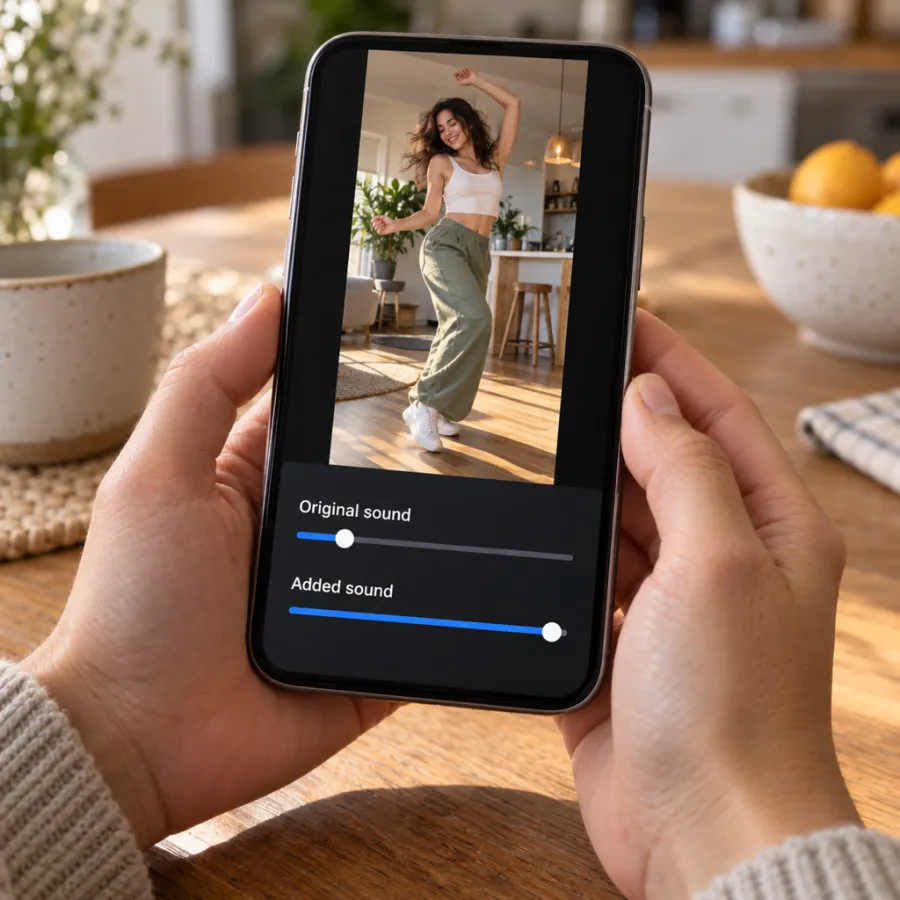
Because your video already has the song in it, adding the trend’s sound on top plays the song twice. The two rarely line up, so it sounds like an echo. Turn the original sound all the way down and let the app’s sound carry it.
- Song trends (Toc Toc, Thriller, Ramalama and the rest): original down to zero, added sound up.
- Trends with a spoken line or a scene sound, like Hit the Road Dude or Ozil Goal: keep a little of the original if the words or the crowd matter to the joke.
- Ghostface: keep the room sound and the sting low under Deceptacon. The scare lands better with it.
- Play it through once before posting. If the beat feels late, nudge where the added sound starts.
Most apps start a sound at its most popular part, which is usually the hook everyone else used. That’s normally what you want, because people recognize it in the first second. If your video’s big moment, like the Thriller lunge or the Ramalama whip-up, lands before or after the hook, drag the sound’s start point until the two meet. A half-second shift is often enough to make a clip feel on the beat.
When the sound is muted or unavailable
Apps sometimes mute a track in a region or on business accounts, and occasionally a sound gets removed. If that happens:
- Search for another upload of the same sound. Trends usually have several.
- Post with your video’s own sound. It already has the song, so it still plays right; it just won’t appear on the sound page.
- On a business account, pick a similar track from the Commercial Music Library.
- Muted after posting? Re-upload with a different version of the sound rather than editing the old post.
Each trend’s sound guide names the exact sound, for example the Burning Bridges sound, the Ramalama sound and the Storm Dance sound.
The AI-generated label
TikTok has an AI-generated content setting under More options before you post; turn it on for any AI-made video. TikTok says the label on its own doesn’t reduce who sees your post. YouTube asks about altered or synthetic content when you upload, and other apps have their own labels. Using them is honest, and people tend to ask how you made it either way.
Haven’t made your video yet? Start from every trend, or read how to put yourself in a viral TikTok video.
NowStarring is an independent fan tool, not linked to TikTok, Instagram, YouTube, CapCut, any of the songs’ artists or the creators of the original trend videos. Every song and sound belongs to its rights holders.
Questions
How do I add the original sound to a TikTok video?
Tap the sound name at the bottom of a video that uses it, tap Use this sound, then upload your clip. Or tap Add sound in the editor and search for it by name.
Why should I add the sound if my video already has the song?
Picking the sound in the app links your post to the trend’s sound page, where people browse every version. A song baked into the file plays, but counts as your own original audio.
How do I stop the song playing twice?
After adding the trend’s sound, open the volume controls and turn your clip’s original sound all the way down.
Why is the sound not available on my account?
Business accounts on TikTok can only use the Commercial Music Library, and some songs are muted in some regions. Try another upload of the sound or post with your video’s own sound.
Does the AI-generated label hurt my views?
TikTok says the label alone doesn’t reduce distribution. Turn it on for AI-made videos.
Does a NowStarring video come with sound?
Yes. Every video is an MP4 with the trend’s song or sound already in it, except Ghostface, which has the scene’s sound and needs Deceptacon added when you post.