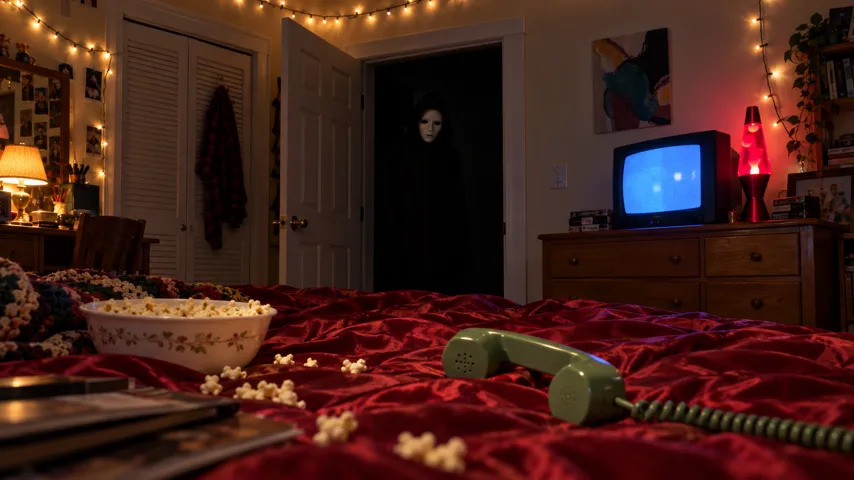
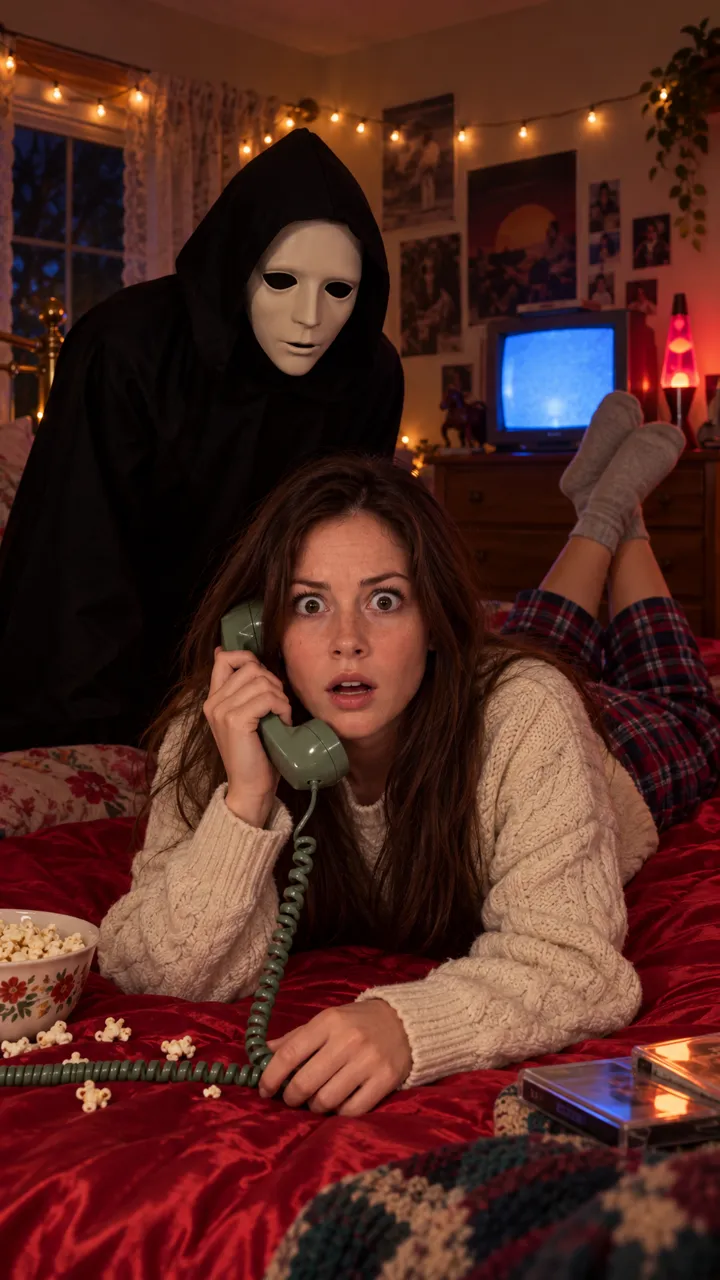
Ghostface AI trend as a video, not just a photo
How to turn the Ghostface AI photo trend into a video with the doorway reveal and the scare: animate your still, prompt a video, or use one photo here.
6 lettura minima · Aggiornato
The short answer
The Ghostface trend started as a still photo, but the video version is the one that scares people: you laugh on the phone, the figure appears in the doorway, and at about seven seconds it’s suddenly behind you. To make it, use an AI video tool with a timed prompt and your photo, animate a still with an empty doorway, or add one photo on the Ghostface page.
Photo vs video: what changes
| The photo | The video | |
|---|---|---|
| What it shows | You on the phone, figure in the doorway | The figure arriving, then the scare |
| Made with | Image tools like Gemini or ChatGPT | AI video tools, or one photo here |
| The payoff | Viewers spot the figure | Viewers see it coming, then the jump |
| Sound | None | Deceptacon added when you post |
| Where it fits | Feed post, carousel, profile picture | TikTok, Reels and Shorts |
A video lets the viewer spot the figure before you do. That gap, a few seconds of you still laughing, is what the trend is about.
The photo still has its place: it’s quicker, it works as a profile picture or a carousel cover, and some people post it first as a teaser. But on TikTok and Reels, where the trend’s sound lives, a still photo can’t do the jump.
The five beats a video needs
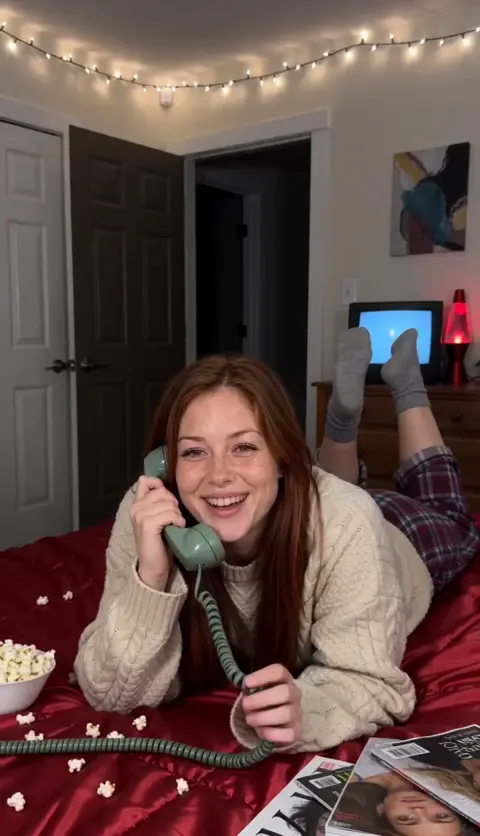
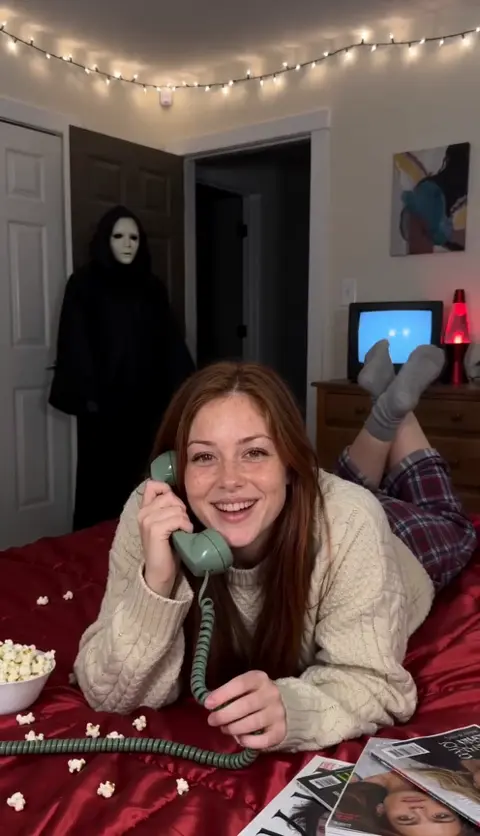
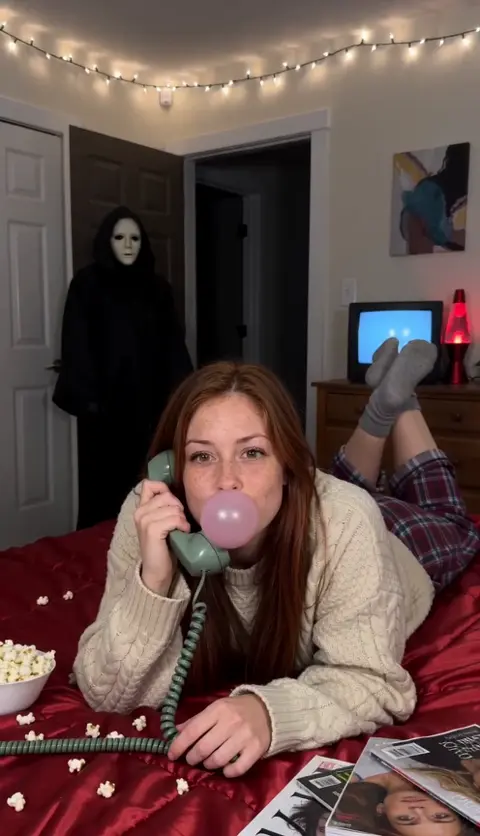
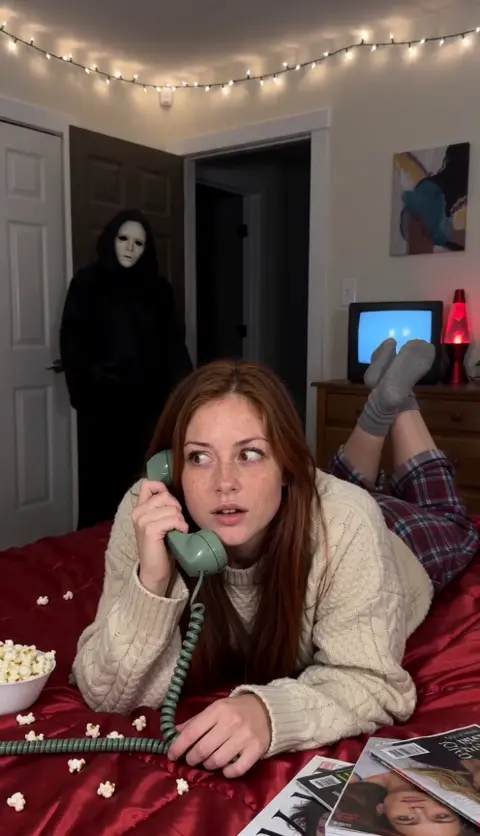
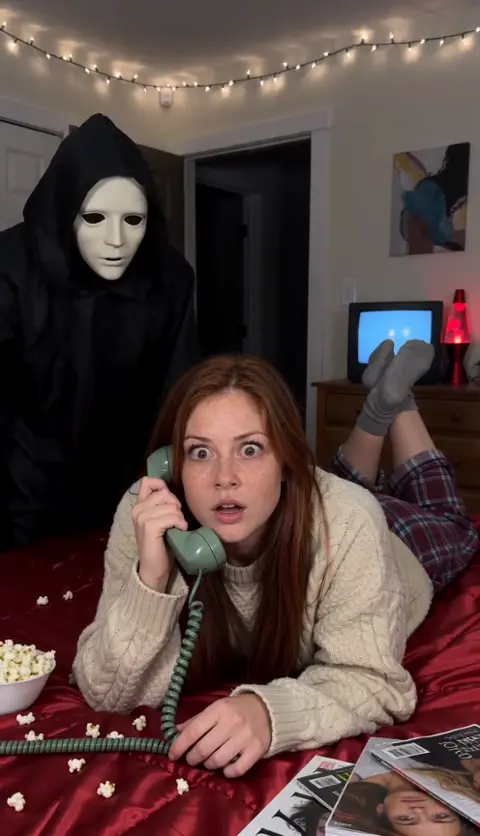
If your video hits these five moments in order, it reads as the trend. Most failed attempts skip the empty doorway at the start or the slow turn before the scare.
Way 1: animate the still you already made
If you already have a Ghostface photo, you can feed it to an AI video tool’s image-to-video mode. The catch: the video starts from that exact picture, figure and all, so there’s no reveal.
- Make a new still in your image tool with the doorway empty: same bedroom, same you, no figure.
- Open an image-to-video tool (Kling, Higgsfield, Runway, Veo or CapCut’s AI video) and use that still as the first frame.
- Prompt the action: “The person keeps laughing on the phone. At 3 s a tall figure in a black hooded robe and a plain white mask appears in the dark doorway and stands still. At 7 s the lights flicker and it is right behind their shoulder; both stare at the camera. The camera never moves.”
- Generate, then add the Deceptacon sound when you post.
Some image-to-video tools let you set a last frame too. Use your original still with the figure in it as the last frame and the empty-doorway still as the first.
Keep both stills consistent: same outfit, same room, same lighting and the same pose. If the two frames differ too much, the tool fills the gap with odd morphing instead of a clean jump.
Way 2: prompt the video from your selfie
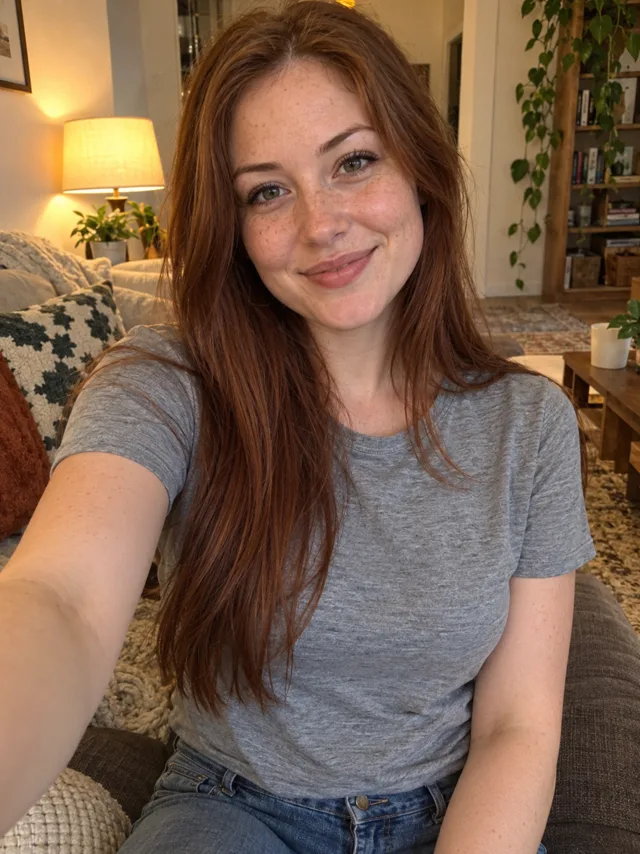
Skip the still and go straight to video: attach a selfie in a reference-image mode and paste the full timed prompt from the Ghostface AI prompt guide. Guys can use the prompt for men.
This gives the tool your face but leaves the room, outfit and timing to the prompt, which is usually closer to the trend than animating a still.
Common video problems
| Problem | Why | Fix |
|---|---|---|
| Figure is there from frame one | The start frame already shows it | Start from an empty-doorway still |
| Figure walks slowly across the room | No reason to jump | Add “the lights flicker and it is suddenly behind them” |
| Scare comes at 2 s | Timing ignored | Trim the start in an editor, or regenerate |
| Your face changes as you turn | Soft or side-on photo | A sharp, front-facing photo; keep your face to the camera |
| The camera zooms in | Tools like to add motion | Say “the camera never moves” twice |
If the tool refuses outright, it’s usually a word in the prompt. See why the Ghostface trend isn’t working.
Way 3: one photo, finished video
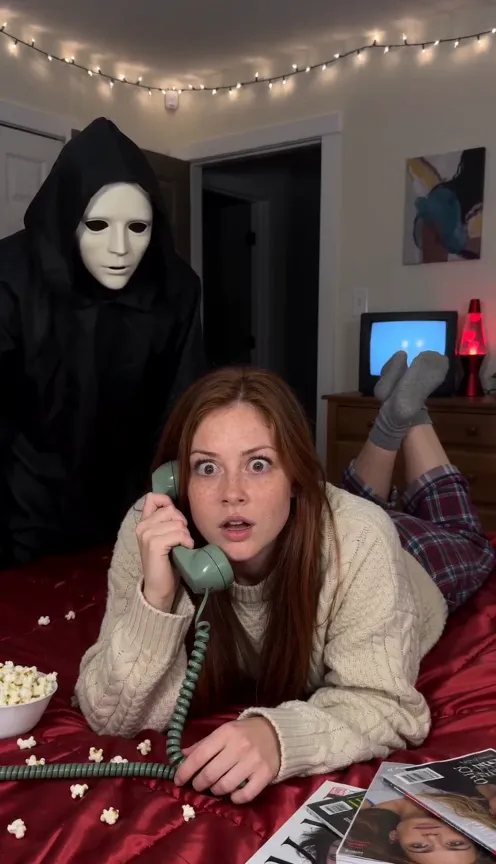
On the Ghostface page you add one selfie and get the whole 10-second vertical video: the bedroom, the cosy outfit, the empty doorway, the figure arriving, the flicker and the scare. It comes with scene sound and a hit on the scare, and no watermark.
One Standard video uses 45 credits. The smallest pack that makes one is $12.90 for 90 credits (2 videos), a one-time buy whose credits never expire, and plans start at $19.90 a month for 270 credits. If a video fails, its credits come back.
Posting the video
- Post vertical so it fills the screen on TikTok, Reels and Shorts.
- Add Deceptacon in the app so your post joins the sound’s page; slide it so the big hit lands on the scare. The sound guide walks through it.
- Pair it with your still: post the photo first, then the video, or both in one carousel where the platform allows video.
- Say it’s AI-made, and turn on TikTok’s AI-generated content label.
- Pick a cover frame from the first three seconds, before the figure appears, so the scare isn’t spoiled in the grid.
- Keep your caption short and leave the doorway clear of text and stickers; viewers need to spot the figure themselves.
NowStarring is an independent fan tool, not linked to the Scream films, their makers or the owners of the Ghost Face mask. The masked figure in our videos is a generic one.
Domande frequenti
Can you make the Ghostface AI trend a video?
Yes. Use an AI video tool with a reference-image mode and a timed prompt, animate a still you already made, or add one photo on a trend site that makes the whole video.
Why does my animated Ghostface photo have no scare?
If you animate a still where the figure is already in the doorway, there’s nothing to reveal. Start from a still with an empty doorway, or use a reference-image mode and a timed prompt.
Can Gemini or ChatGPT make the Ghostface video?
Their image tools make the still photo. For the moving version, take your photo to an AI video tool, or use a one-photo trend video site.
How long is the Ghostface AI video?
Trend videos are short. Ours is 10 seconds, with the scare at about seven.
Can I turn my Ghostface photo into a video for free?
Some AI video tools have free tiers with an image-to-video mode, usually with a watermark or limits. Our free guide compares the options.