Ghostface AI: CapCut vs an AI video generator vs one photo
CapCut, an AI video generator or a one-photo site for the Ghostface AI trend? An honest comparison on likeness, the scare shot, sound, effort and cost.
6 lettura minima · Aggiornato
The honest verdict
For the Ghostface AI trend, a CapCut template only works if you’ve already filmed yourself in the scene; an AI video generator with a good prompt can make the scene from your photo for little or no money but takes retries; a one-photo site like ours gets you the finished video in one go for a price. CapCut is still the best place to edit and add the sound, whichever way you make the clip.
Short version: own footage, use a template. Want to tinker for free, use a generator. Want it finished from a selfie, use one photo on the Ghostface page.
Side by side
| CapCut template | AI generator + prompt | One photo here | |
|---|---|---|---|
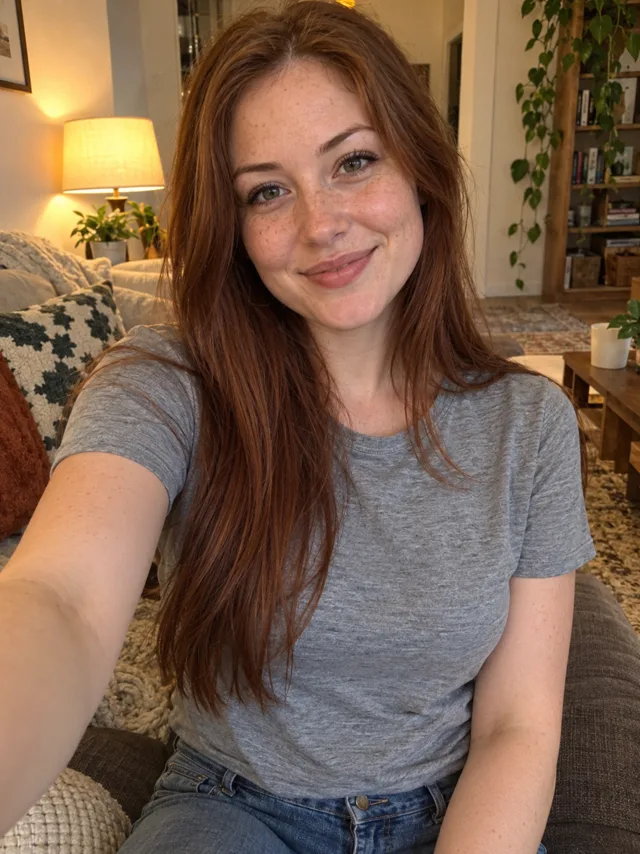
| Your face | Real, from your footage | From your photo; can drift | From your photo |
| The doorway reveal and scare | Only if you filmed it | Usually, after a few tries | Built in, at about 7 s |
| Sound | Template’s sound, or add your own | Usually silent or the tool’s own | Scene sound and the hit on the scare |
| Effort | Film first, then minutes | Prompting and retries | Add one photo |
| Room and outfit | Your own | Whatever you prompt | The trend’s 90s room and cosy outfit |
| Cost | Free to start | Free tiers, then paid | Paid, from the price below |
The row that matters most for this trend is the reveal. A Ghostface video without the figure arriving while you’re still laughing is just a spooky selfie, so pick the route that can actually give you that moment.
When a CapCut template wins
You already have the footage: you filmed the phone call with a friend in a mask and just want the cuts, the flicker and the text overlays done for you. A template lines your clips up to its timing and you’re finished in minutes, free.
It doesn’t help if you have only a selfie. A template has no way to put you in a 90s bedroom or to add a figure in the doorway.
- Pick a template built for one continuous clip. The trend is a single shot, and templates made for quick cuts chop up the reveal.
- Preview it with your footage before you export and check that the flash or flicker falls on your scare, not before it.
- If the template’s text covers the doorway, move or delete it. The figure in the back is the whole joke.
When an AI video generator wins
You want control and don’t mind tinkering. With the Ghostface AI prompt and your photo in Kling, Higgsfield, Runway, Veo or CapCut’s AI video tools, you can change the outfit, the room or the timing, and free tiers let you try before you pay.
The trade-offs: filters that block the character’s name, a figure that shows up too soon, and faces that drift. Budget a few generations.
Tools differ in how well they keep a face and follow timing, and they change often. Try the same prompt and photo in two of them, then stick with the one whose result looks most like you.
When one photo wins
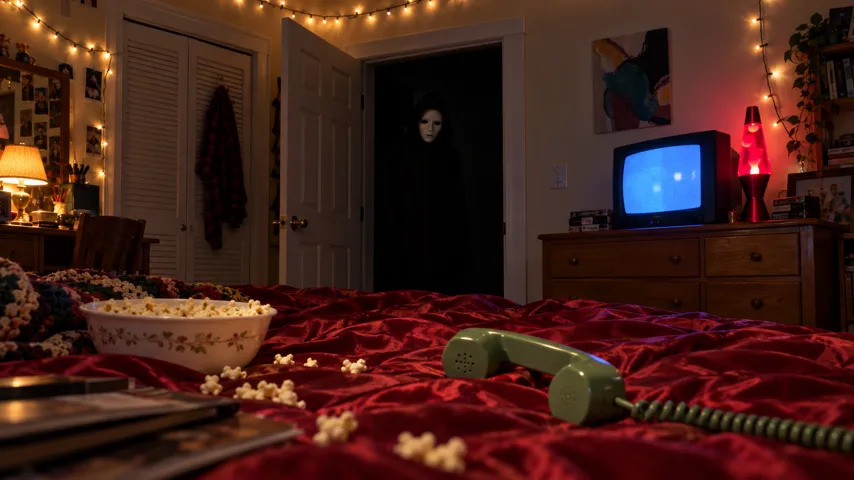
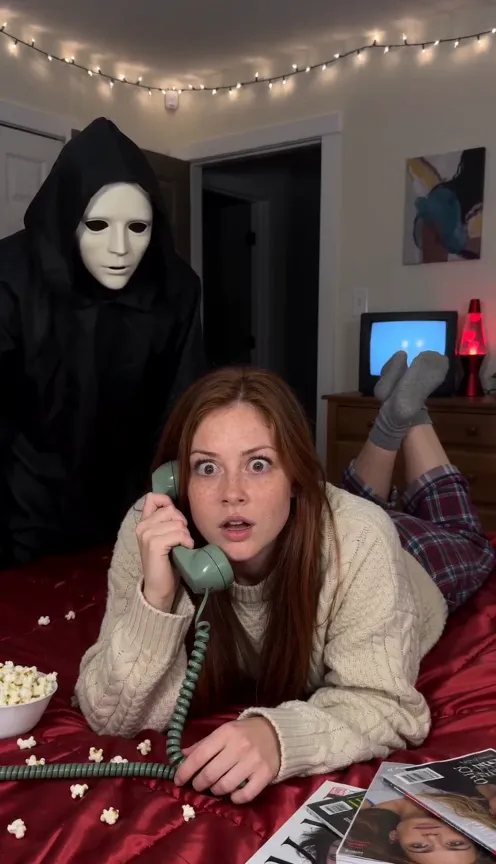
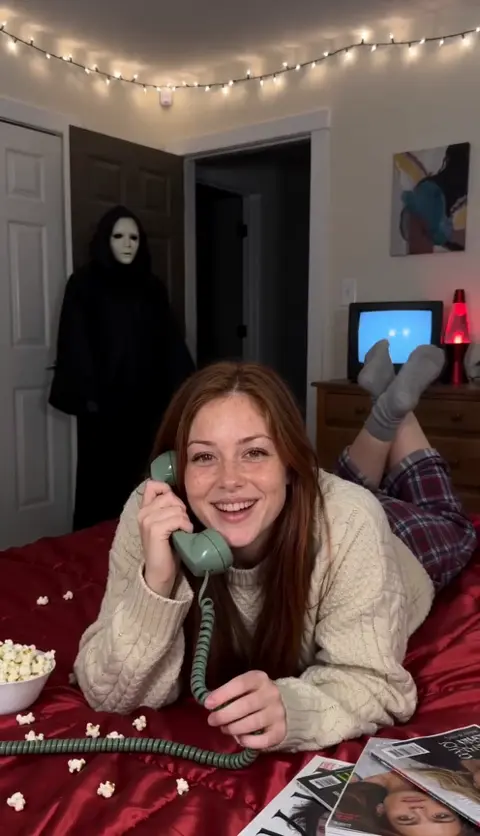
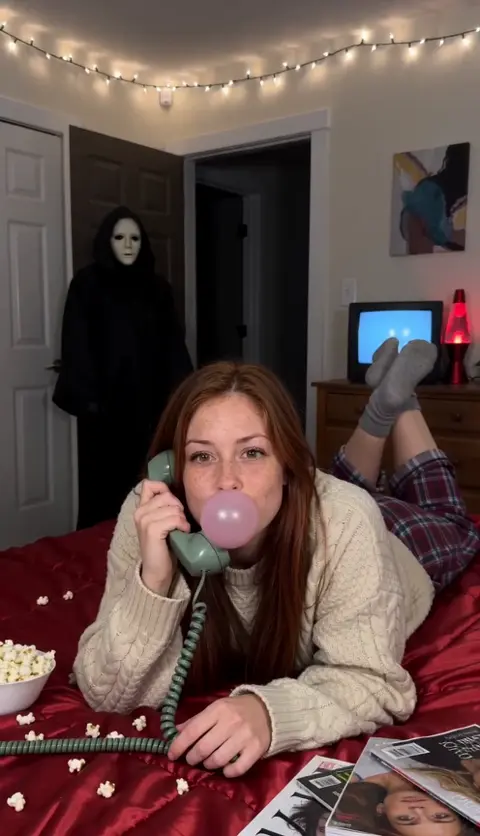
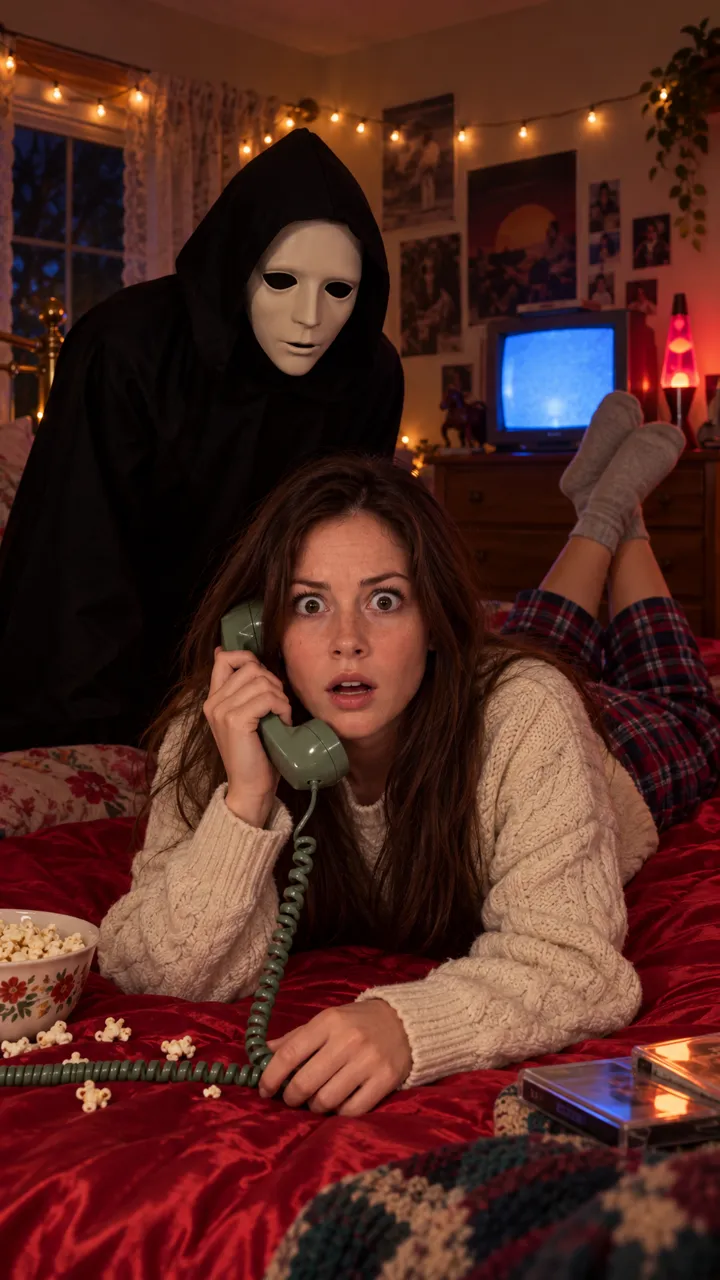
You want the trend as it looks on TikTok, once, without learning a tool. On the Ghostface page you add one photo and get the 10-second vertical video: you on the phone in cosy 90s loungewear, the figure in the doorway, the flicker and the scare at about seven seconds, with scene sound and no watermark.
One Standard video uses 45 credits. The smallest pack that makes one is $12.90 for 90 credits (2 videos), a one-time buy whose credits never expire, and plans start at $19.90 a month for 270 credits. If a video fails, its credits come back.
The limits, honestly: one person per video, the outfit and room are the trend’s, and there’s no free video.
Mixing routes works too
These aren’t either-or. Plenty of people make the clip one way and finish it another:
- Make the video from one photo, then open it in CapCut to add a caption such as the time of night or who’s “calling”.
- Generate a few takes with a prompt, then cut the best one in CapCut so the figure appears right on the beat.
- Film the setup yourself, and use an AI tool only for the last shot if your friend can’t get behind you fast enough.
Whatever you choose, keep the final edit vertical and at about ten seconds. Longer versions lose the snap of the scare.
Step by step: the CapCut route
- Film the scene yourself with the shot plan in the free guide, or make the clip with CapCut’s AI video tool and the prompt.
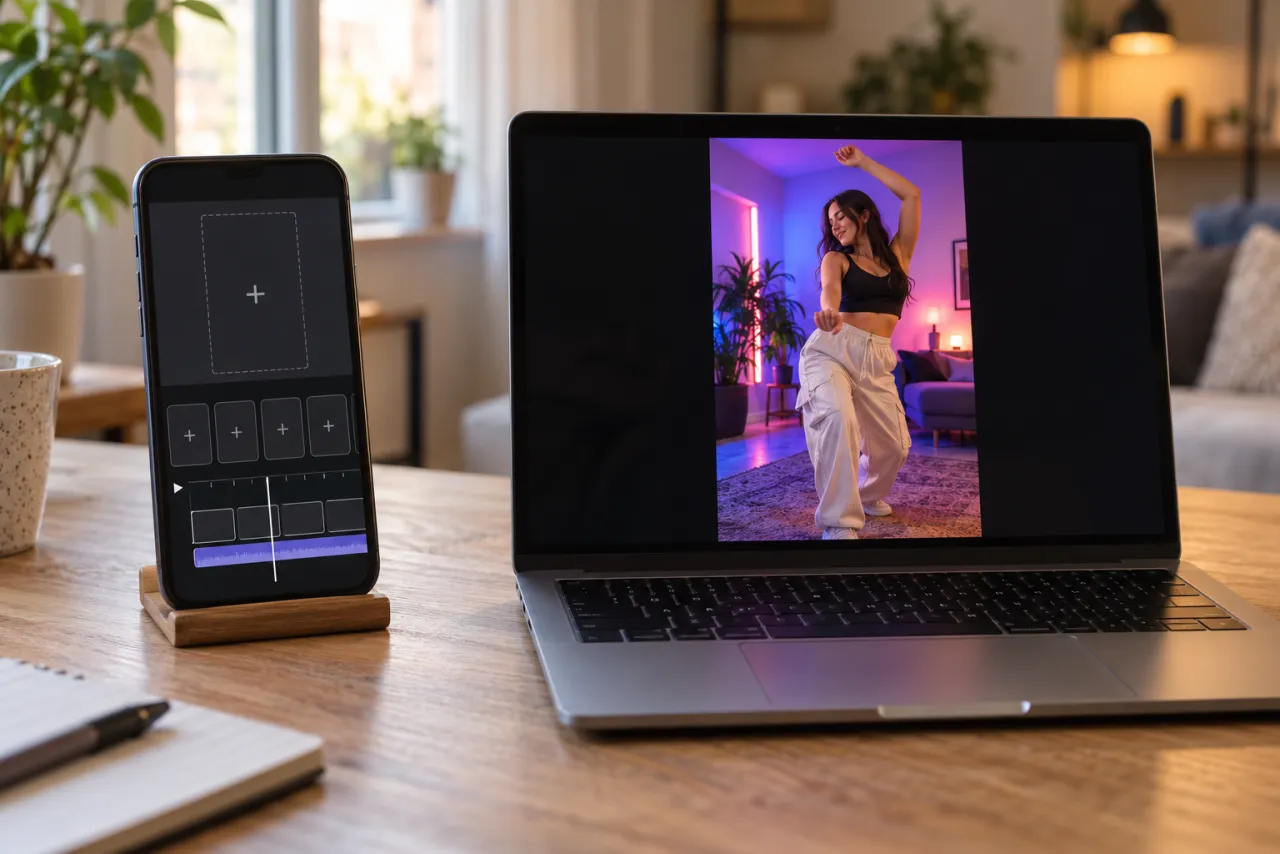
- In CapCut, start a new project with your clip, or tap Templates and search the trend name to use one with your footage.
- Trim the start so the figure appears around three seconds in.
- Add a quick black frame or a brightness dip at seven seconds if your clip doesn’t flicker on its own.
- Export vertical 9:16, then post to TikTok or Reels and pick the Deceptacon sound there, so the post joins the sound’s page.
Adding the sound in the TikTok or Instagram app rather than in CapCut is what links your video to the trend. The sound guide has the steps.
NowStarring is an independent fan tool, not linked to the Scream films, their makers or the owners of the Ghost Face mask. The masked figure in our videos is a generic one.
Domande frequenti
Is there a CapCut template for the Ghostface trend?
Creators post templates for many trends, so search the trend name in CapCut’s Templates tab. A template re-cuts footage you already have; it won’t create the bedroom or the masked figure for you.
Can CapCut make the Ghostface AI video from a photo?
CapCut has AI video tools that can animate a photo from a prompt. Use a costume description rather than the character’s name, and expect a few tries to get the timing right.
What’s the easiest way to make the Ghostface AI video?
A one-photo trend site: you add a photo and get the finished clip. It costs money, but there’s no prompt, no editing and no costume.
Which option has the Deceptacon song?
None of them bake in the commercial song reliably. In every case you pick the Deceptacon sound on TikTok or Reels when you post.
Can I edit the NowStarring video in CapCut afterwards?
Yes. It’s a normal MP4 with no watermark, so you can trim it, add text or add the sound in CapCut before you post.
Can I use the Ghostface prompt in CapCut?
Yes, in CapCut’s AI video tools with your photo attached. Leave out the character’s name and describe the costume, as the prompt already does.