Boxing AI: CapCut vs an AI video generator vs one photo
CapCut, an AI video generator or a one-photo site for the Boxing AI trend? A fair comparison on likeness, the combo, the punch labels, sound, effort and cost.
قراءة في 6 دقيقة · آخر تحديث
The honest verdict
For the Boxing AI trend, CapCut is great if you’ve filmed yourself behind the sofa and want to add the punch labels; an AI video generator with a good prompt can make the clip from a photo for little or no money but takes retries; a one-photo site like ours gives you the finished flurry and combo, for a price. CapCut is the best place to edit, whichever way you make the clip.
Short version: you have the footage, use CapCut. You like tinkering, use a generator. You want it done from a selfie, use one photo on the Boxing page.
Side by side
| CapCut template | AI generator + prompt | One photo here | |
|---|---|---|---|
| Your face | Real, from your footage | From your photo; can drift on the punches at the lens | From your photo |
| The combo | As well as you throw it | From the prompt; punches can get skipped | Built in: the flurry, then the combo |
| Punch labels | Add text yourself, or the template’s | Add them in CapCut | Add them in CapCut if you want them |
| Sound | Template’s sound, or add your own | Usually silent | The trend’s sound, already in it |
| Effort | Practise, film, then minutes | Prompting and retries | Add one photo |
| Cost | Free to start | Free tiers, then paid | Paid, from the price below |
When CapCut wins
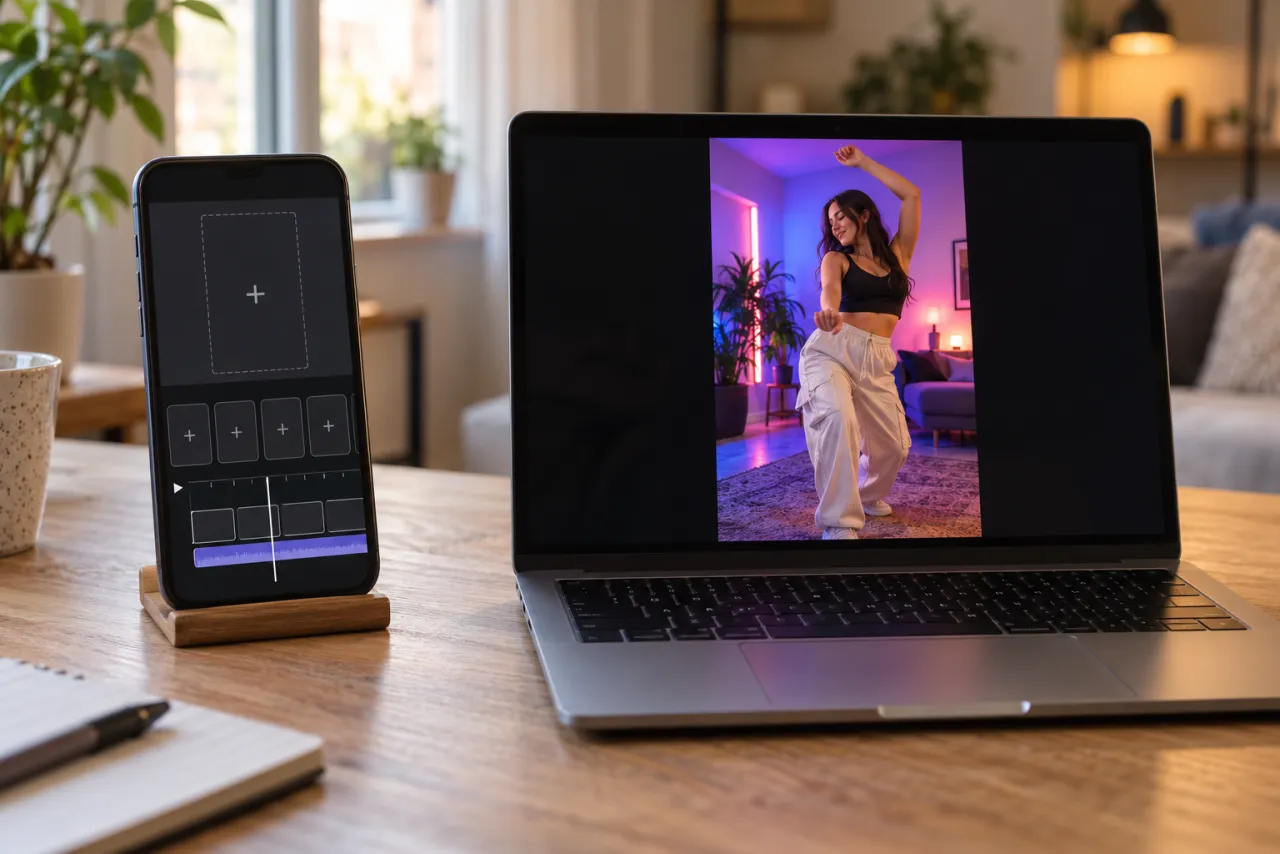
You’ve already filmed yourself behind the sofa. CapCut is where the trend’s finishing touches go: a label on each punch, the combo slowed down, a trim so it starts right on the flurry. It’s free, and it’s the only route where the punches really are yours.
- If you use a template, pick one made for one continuous clip, so the combo isn’t cut up.
- Check each label lands on its punch, not a beat early.
- Keep the text away from your face; the jab comes straight at the lens.
What CapCut can’t do is throw the combo for you. If the flurry looks stiff or a punch is missing in your footage, no edit will fix it.
When an AI video generator wins
You want to change things: the stone steps the trend began on, a bedroom instead of a living room, a slower combo. With the Boxing AI prompt in Kling, Higgsfield, Runway, Veo or CapCut’s AI video tools, you control the scene, and free tiers let you try first.
The trade-offs: gloves that appear, a soft flurry, a final cross that turns into a smile and a pose, and faces that drift when a fist comes at the lens. You also add the labels and the sound yourself.
Tools differ in how well they keep a face through fast movement, and they change often. Try the same prompt in two and keep the one that looks most like you.
When one photo wins
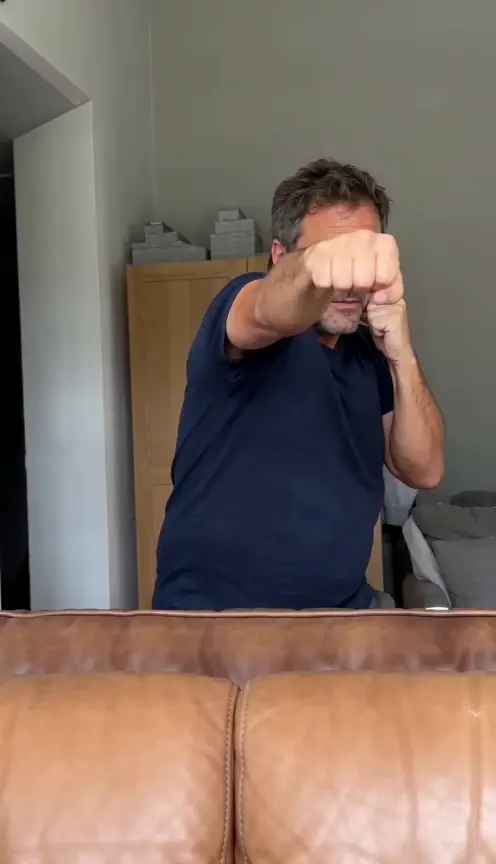
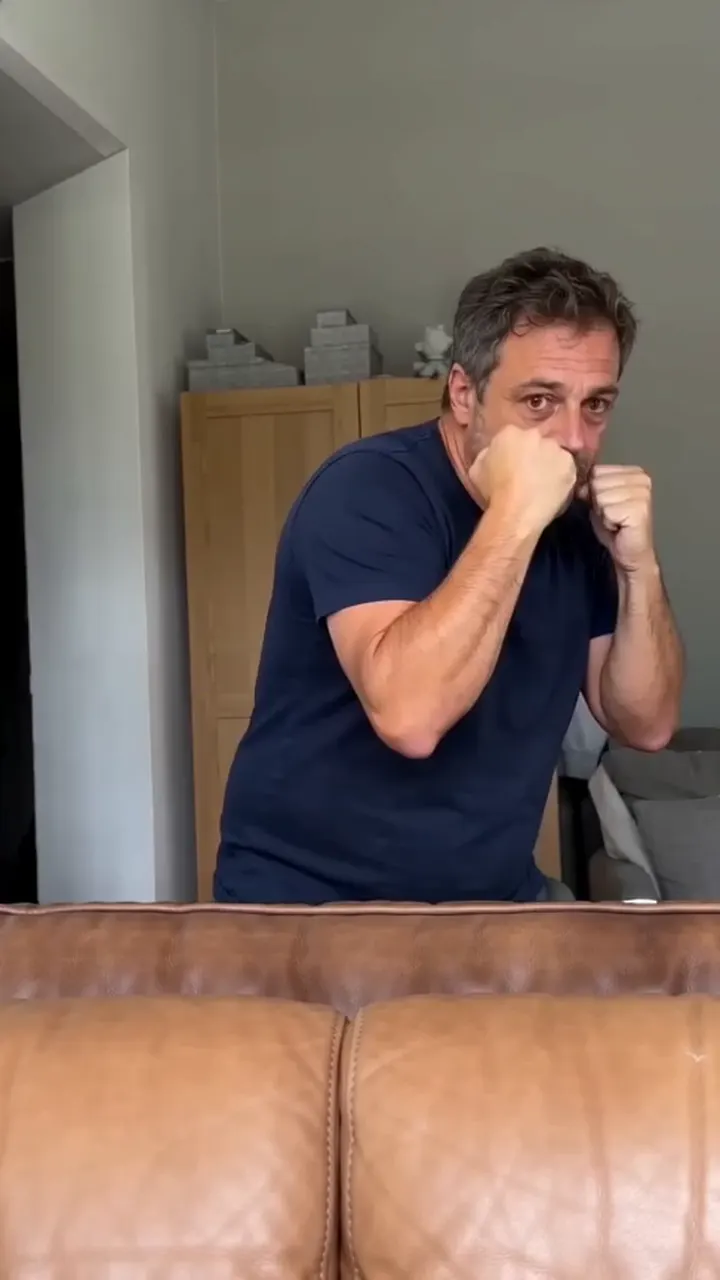
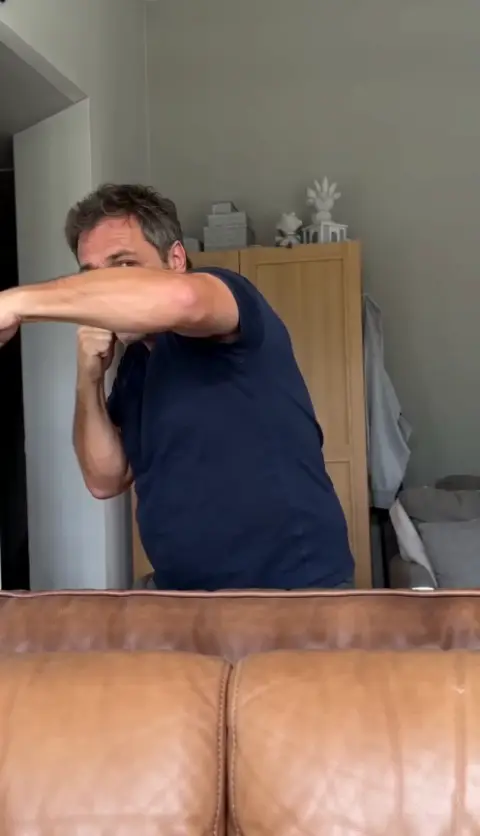
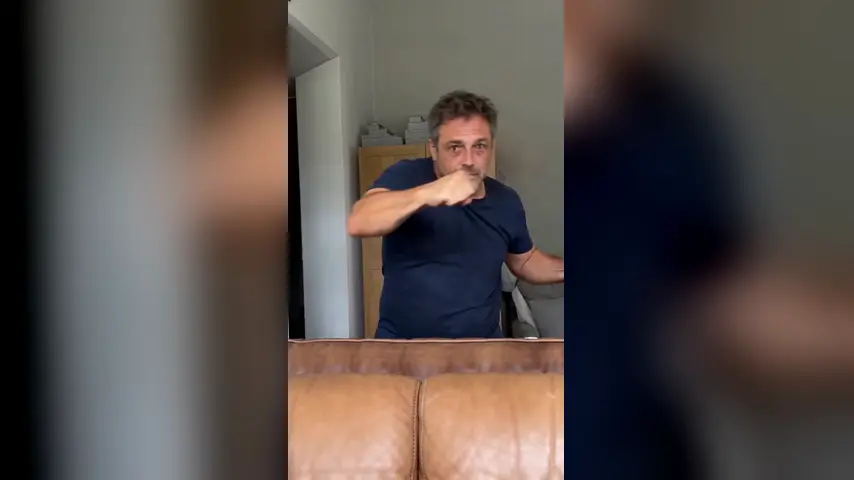
You don’t want to practise, you don’t have the right sofa, or you just want the trend as it looks on TikTok. On the Boxing page you add one photo and get 10 vertical seconds: you behind a brown leather sofa, a fast flurry, back to guard, then uppercut, jab, hook and the other uppercut with a dead serious face, bare fists and no watermark.
One Standard video uses 45 credits. The smallest pack that makes one is $12.90 for 90 credits (2 videos), a one-time buy whose credits never expire, and plans start at $19.90 a month for 270 credits. If a video fails, its credits come back.
The limits, honestly: one boxer per video for now, the room is the trend’s, and there’s no free video.
Mixing routes works too
You don’t have to pick just one. Common combinations:
- Make the clip from one photo, then add the punch labels in CapCut.
- Post your own homemade attempt next to the AI version of you.
- Make one for each friend and post them back to back, since each route is one boxer per clip.
- Add a caption about what you’re training for, like Monday morning or your inbox.
Whatever you do, keep the final edit vertical and short. The trend lives in about ten seconds, and the combo loses its punch in a longer cut.
Step by step: the CapCut route
- Film your clip with the shot plan in the free guide, or make one with an AI video tool and the prompt.
- In CapCut, start a new project with your clip, or tap Templates, search “boxing combo” and use one with your footage.
- Trim the start so the video opens straight on the flurry.
- Tap Text and add one label per punch of the combo: UPPERCUT, JAB, HOOK, UPPERCUT, CROSS. Keep each on screen for about a second, starting as the punch lands.
- Want the slow-motion look? Split the clip where the combo starts and slow that part down with Speed.
- Export vertical 9:16. Post to TikTok or Reels and add the trend’s sound in the app, so the post joins the sound’s page.
The sound guide shows how to find the sound and add it.
NowStarring is an independent fan tool, not linked to the creator of the original clip or anyone in the trend. The trend’s sound belongs to its rights holders.
أسئلة
Is there a CapCut template for the Boxing trend?
Creators post templates for most trends, so search “boxing combo” in CapCut’s Templates tab. A template edits clips you already have; it won’t throw the punches for you.
Can AI make the Boxing video from one photo?
Yes. AI video tools can animate your photo from a prompt, and one-photo sites like ours make the whole clip, sofa and combo included.
Which option includes the sound?
None of the AI routes, ours included. Templates may carry their own sound. Either way, adding the trend’s sound on TikTok is what puts your post next to the others.
How do I add the punch names?
In CapCut, add a text layer on each punch of the combo and keep it on screen for about a second. It works the same on a filmed clip or an AI one.
Can I edit the NowStarring video in CapCut?
Yes. It’s a normal MP4 with no watermark, so you can add the labels, slow the combo down or trim it before you post.
What’s the easiest way to do the Boxing AI trend?
One photo on a trend site: no practising, no filming and no prompt. It costs money; the other routes cost time.